Gboard - the Google Keyboard
Google LLCTools
4.5440.73K Reviews
- Version
- Varies With Device
- Installs
- 10.00B
- Age Rating
- Everyone
Screenshots
Our Review of Gboard - the Google Keyboard
 Analysis by Appyee
Typing on a phone often means losing time in small, annoying ways: correcting a name, switching apps to find a detail, or hunting through symbols for the one you need. A keyboard cannot make a tiny screen feel spacious, but it can reduce those interruptions. That is the standard I use for Gboard - the Google Keyboard: does it help me finish everyday messages with less fuss, without getting in the way when I just want to type?
Where the saved time actually comes from
The biggest benefit is not one spectacular tool; it is having common typing tasks close at hand. Word suggestions, swipe input, voice dictation, emoji, and GIF search can all help in different moments. The value depends on your habits. If you mostly send short messages, suggestions and quick access to symbols may matter more than voice typing. If you write longer notes on your phone, swipe input can reduce repeated taps once it feels natural.
There is a useful distinction between speed and fewer interruptions. A keyboard may not make every sentence faster, but it can spare you from leaving a conversation to look something up or from opening a separate app just to find a reaction image. I notice that most when I am replying in a hurry: I can keep the message in front of me, make a small correction, and send it without a chain of app switches.
Set it up around the way you write
Gboard is a free Tools app from Google LLC, and its first-run setup asks you to make it available as a keyboard and choose it for typing. Take a moment to check the language and layout you actually use rather than assuming the defaults will suit you. If you regularly write in more than one language, adding the right layouts makes switching less disruptive and helps avoid fighting suggestions that do not match the message.
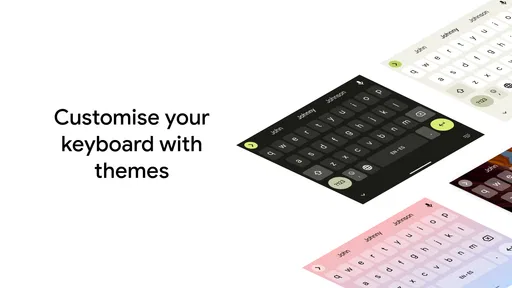
I would also test the input methods before deciding which ones belong in your routine. Try swipe typing for a few sentences, then return to tapping if it produces too many corrections. Turn on voice typing only if you expect to use it, and make sure you know where its microphone control appears. Theme choices can make the keys easier to distinguish or simply more pleasant to look at, but a colorful design is not a substitute for a layout that feels comfortable under your thumbs.
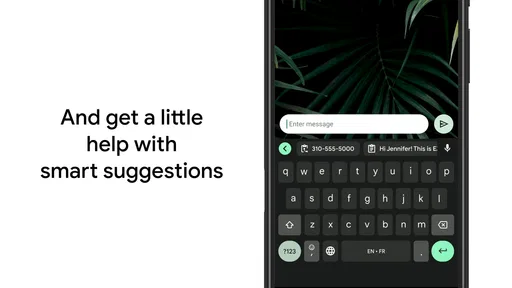
One practical habit is to learn the keyboard’s punctuation and symbol shortcuts instead of switching views by instinct. That small adjustment helps when entering an address, a time, or a short work note with numbers and punctuation. Another is to pause over the suggestion strip before accepting a correction: predictive text is handy, but names, abbreviations, and specialist terms are exactly where an automatic replacement can be wrong.
How Gboard fits into ordinary phone use
I use the keyboard so often that its small interruptions can add up: a layout that makes punctuation awkward, a correction I have to undo, or a pause to find a useful reaction. This section looks at how Gboard fits into those ordinary moments, and why the best setup is the one that removes friction without asking me to change how I write. From there, I’ll consider which everyday tasks benefit most from its extra tools.
Features That Make Typing a Breeze
Let’s talk features. Gboard is packed with a ton of them, and they’re pretty nifty. One of my favorites is the integrated Google search. Imagine this: you're chatting with a friend about the best pizza places nearby, and instead of switching apps, you can just tap the Google icon on the keyboard and search right there. It saves time and keeps the conversation flow uninterrupted.
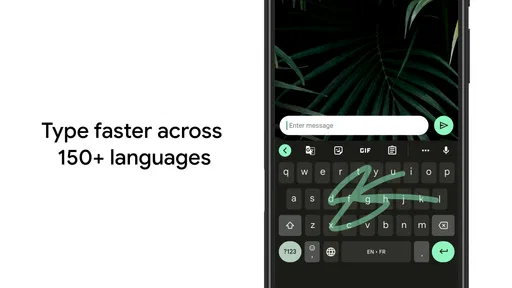
Another standout feature is the glide typing. It’s smooth and intuitive, allowing you to slide your finger from letter to letter to form words. It's surprisingly accurate and speeds up your typing game significantly. If you’re not used to it, it might take a bit to get the hang of, but trust me, once you do, there’s no going back.
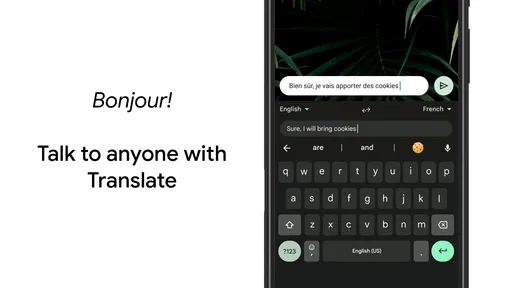
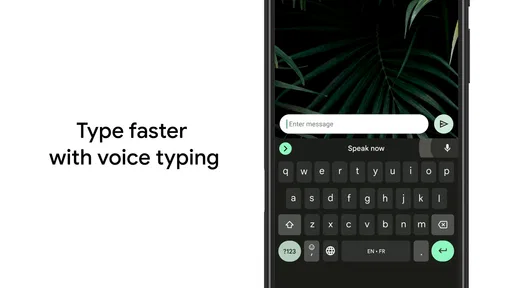
Voice typing is another highlight. Just tap the microphone icon and start speaking. The accuracy is impressive, and it’s perfect for those times when you need to send a message but can’t use your hands. Plus, Gboard supports multiple languages, which is a huge plus for multilingual users.
A few everyday tests that show the trade-offs
Picture a familiar morning: you are walking to meet someone and want to send a quick update about being delayed. If your hands are occupied, dictation can be more practical than trying to tap with one thumb. In a quiet room, it is often a comfortable way to compose a longer message; in a crowded place, speaking aloud may be awkward, so the same feature that saves effort can be the wrong choice. I treat voice input as an option, not a replacement for typing.
For a multilingual conversation, language support can make the keyboard more adaptable, but it is still worth checking the language setting when suggestions start looking odd. A borrowed word, a person’s name, or a sentence that shifts between languages can confuse predictions. Rather than repeatedly accepting and undoing a bad suggestion, I would switch to the intended layout or simply tap out that phrase. That is a small extra step, but it is better than sending a polished-looking mistake.
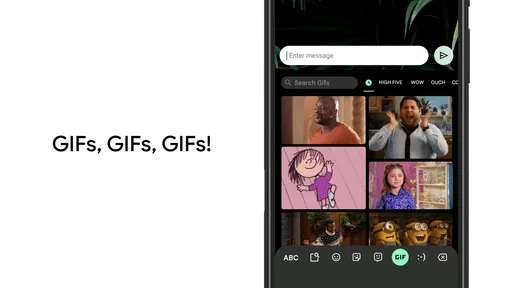
Search and GIF tools are most useful when the other person needs a quick answer or a reaction, not when the conversation calls for a careful explanation. They keep simple exchanges moving, yet they can also tempt you to browse when a plain reply would do. I find them helpful as shortcuts, not as reasons to add more decoration to every message.
The Emoji and GIF Game is Strong
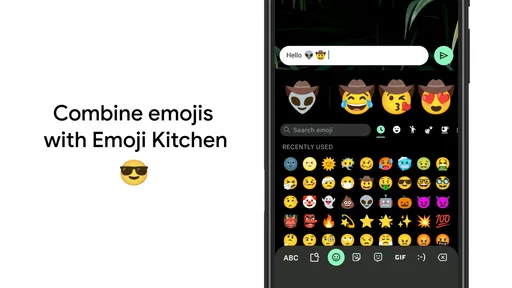
If you’re an emoji lover like me, you’ll appreciate the extensive emoji library. Gboard makes it incredibly easy to find the perfect emoji for any situation, and the predictive emoji suggestions are usually spot on. But wait, there's more! The GIF search feature is a total game-changer. You can search and send GIFs directly from the keyboard, adding a fun and expressive element to your conversations.
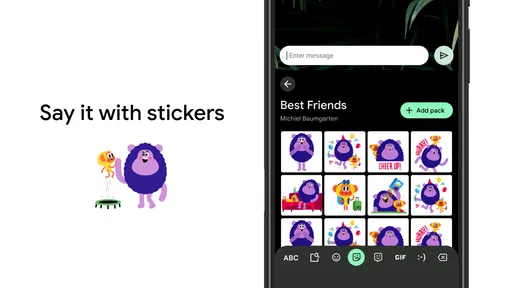
Stickers and Bitmoji integration are also available, making it super easy to add a personal touch to your messages. The ability to express yourself creatively with just a few taps is something I didn’t know I needed until now.
Choosing it over a phone’s default keyboard
The fair comparison is not with every keyboard on the market; it is with the keyboard already on your phone. A built-in option may be the better choice if you like its layout, already rely on its shortcuts, or want to avoid changing a familiar setup. Gboard makes a stronger case when you value its mix of swipe typing, voice input, language options, and direct access to expressive content in one place.
On iOS, Android, and different phone models, the exact feel of typing can vary because the device and operating system shape the experience too. I would not assume that every setting or shortcut behaves identically everywhere. If you depend on one particular workflow, test it in the apps where you actually write before moving over completely. You can also keep your decision simple: if the default keyboard already handles your daily tasks comfortably, switching may bring little practical improvement.
Gboard has reached a 4.5 average from around 19 million ratings and has been installed over 10 billion times. Those figures suggest that it is a familiar choice for many people, but popularity does not guarantee that its layout will suit your hands or habits. It is free and rated for Everyone, so trying it is a low-commitment way to see whether its particular shortcuts fit your routine.
Privacy and Typing Experience
Now, let’s address the elephant in the room: privacy. With any app, especially one that handles so much personal data, privacy is a concern. Google assures users that Gboard does not send any data back to Google unless you choose to use the voice typing feature or search functionality. This means your keystrokes and personal data are generally safe, which is reassuring.
The typing experience itself is smooth and responsive. There’s no lag, and the haptic feedback settings give you a satisfying tactile response with each tap. It feels very natural, almost like typing on a physical keyboard, which is a huge plus for productivity geeks like myself.
Who should keep looking, and what to decide
If you want a keyboard that stays plain and familiar, or you dislike suggestions and extra content controls, the default keyboard may be a better fit. The same goes for anyone who rarely uses GIFs, stickers, dictation, or swipe input: those options will not save much time if you never reach for them. And if you often type private or sensitive material, take time to understand the settings and choices around voice input and search before using those tools. I would not treat any keyboard as a reason to stop thinking about where information is entered.
For people who type in several languages, send a steady stream of messages, or regularly dictate while their hands are busy, Gboard is easier to recommend. The useful question is whether its extras remove friction from your day or merely add controls you have to manage. Give it a few ordinary days, including a longer note and a message with numbers or names, then judge it by how often you have to correct yourself or switch away from the conversation.
Final Thoughts: Is Gboard Worth It?
In conclusion, Gboard - the Google Keyboard is a fantastic tool for anyone looking to enhance their typing experience. From its seamless integration with Google services to its fun and practical features like glide typing and GIF search, it’s clear why this app has become a favorite for many.
Whether you’re using it for work, casual conversations, or anything in between, Gboard delivers a smooth and efficient typing experience. It’s free, it’s customizable, and it’s backed by the reliability of Google. So, if you haven’t tried it yet, give it a shot. You might just find it’s exactly what you’ve been looking for in a keyboard app.
My practical verdict
I would start with the default layout, add only the languages I use, and try swipe typing and dictation in low-stakes messages before relying on them. That gives you a realistic sense of whether the features help without turning setup into a project. If the keyboard saves even the occasional app switch and makes routine replies more comfortable, it earns its place; if you keep correcting suggestions or prefer a bare, predictable layout, there is no need to switch just because it is popular.
Verdict
Strengths of Gboard - the Google Keyboard
- Supports multiple languages seamlessly.
- Integrated Google search for quick access.
- Customizable themes and layouts.
- Efficient glide typing for faster input.
- Smart predictive text suggestions.
Limitations of Gboard - the Google Keyboard
- Occasional lag on older devices.
- Limited font customization options.
- Privacy concerns with data access.
- Some users find voice typing inaccurate.
- May drain battery on heavy use.
Other Releases by Google LLC
View All
Google Calendar
Productivity4.6

Google Messages
Communication4.6

Tools4.0

Google TV
Video Players & Editors3.9
Similar Picks in This Category
View AllGoogle LLC4.0

Google Play services
Google LLC4.3

Google Play Store
Google LLC4.9

Files by Google
Google LLC4.5

SHAREit: Transfer, Share Files
Smart Media4U Technology Pte.Ltd.4.3

Google Lens
Google LLC4.7
You May Also Like
View All


Frequently Asked Questions
What features does Gboard offer?
Gboard provides a range of features including glide typing, voice typing, and multilingual typing. It also offers integrated Google Search, GIFs, emojis, and sticker support. The keyboard is customizable with themes and allows clipboard management, making it versatile for both personal and professional use.
Is Gboard safe and secure to use?
Yes, Gboard is developed by Google and prioritizes user privacy and security. It does not store or send your keystrokes to Google unless you enable features like voice typing or search. Always review the app permissions and privacy terms to ensure you're comfortable with its data handling.
Can I use Gboard in multiple languages?
Absolutely. Gboard supports over 500 languages and allows you to switch between them seamlessly. It also offers multilingual typing, enabling you to type in multiple languages without changing the keyboard, which is ideal for bilingual users or those learning a new language.
Does Gboard work on both Android and iOS?
Yes, Gboard is available for both Android and iOS devices. While the core features remain consistent across platforms, there might be slight differences in functionality or updates due to the operating systems' nature. Always ensure you're using the latest version for the best experience.
How do I customize Gboard?
Customizing Gboard is straightforward. You can change themes, adjust keyboard size, and enable or disable features like haptic feedback. Access the settings through the Gboard app or keyboard settings on your device. Explore various customization options to tailor the keyboard to your preferences.
